
Product

Download Streamer Agent for recurring and hardware-backed events

You can always stream from the browser. For recurring agents and dedicated room setups, the desktop Streamer Agent gives you a more repeatable workflow.

InterScribe Streamer AgentInterScribe Streamer Agent
Native app for persistent audio streaming workflows.
Version
PlatformsLinux, macOS (Apple Silicon)
Pro tip: Keep browser streaming for ad-hoc events. Use desktop agents for recurring channels, dedicated operator stations, and fixed hardware rooms.

How it works

Based on our knowledge base guides for event setup, AV agents, and AV channel management.

1Create or open your event

Set your event language, schedule, and interpretation options in the InterScribe dashboard.

2Assign AV Channels for persistent setups

For recurring rooms and fixed hardware, map the event and agent to the same AV Channel.

3Choose your audio path

Use Streamer Dashboard, Web Agent, Desktop Agent, mobile input, or AV ingress based on your setup.

4Go live and stream

When the event starts, the agent streams audio so attendees can follow captions and translation in real time.

Run the Streamer Agent

Three ways to run it. They all stream the same audio into your AV channel — pick the one that fits the room.

Streamer Desktop App

Recommended

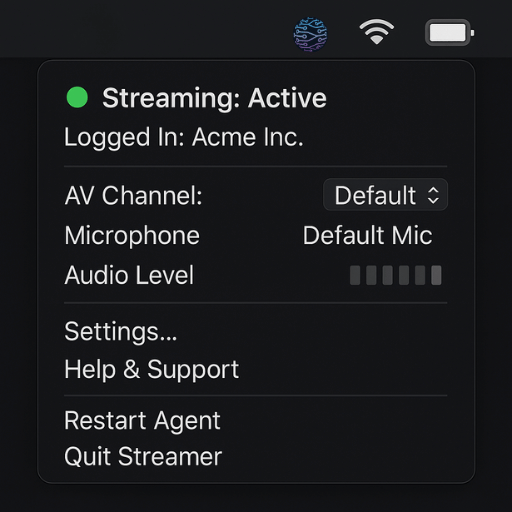
The InterScribe app for Linux and Apple Silicon Macs, with a window and a menu bar or tray icon for status and controls.

  1. Download the installer for your computer below and install the app. On Mac, open the disk image and move InterScribe Agent to Applications.
  2. Open the app, sign in to your workspace, select your AV channel and audio input, and grant microphone access when prompted.
  3. Use the menu bar or system tray icon to check connection and streaming status, open settings, or quit. Run a short audio check before your event.

Command line (CLI)

For a Raspberry Pi or another machine that stays in the venue, and for anything that runs unattended as a service.

Checking published versions...

Browser

Nothing to install. Good for a one-off session, or a computer you do not own.

Install command and CLI reference

Paste this into a terminal, in a new empty folder you own. One line: it downloads the CLI, checks it against the checksum in our signed release manifest — and Apple notarization on macOS — then prints the version it installed.

No install command to show: we could not read a published CLI version. Reload this page to try again.

In that folder, sign in and start the agent. Leave this terminal open; Ctrl+C stops it.

./interscribe-agent login
./interscribe-agent run

Open a second terminal in the same folder to choose your channel and microphone, check status, or get help. Confirm audio at the listener before your event.

./interscribe-agent config
./interscribe-agent status
./interscribe-agent doctor
./interscribe-agent --help

From that folder, check for updates and install them below. Stop the running agent before upgrading, then start it again; updating does not restart it automatically.

./interscribe-agent update --check
./interscribe-agent update

Streamer Desktop App downloads

Pick the build for the machine you will run it on. Every download comes straight from our signed release.

Loading available versions...

When to use browser vs desktop agent

Still browser-first

You can always stream from the browser. No desktop install is required for quick or one-time sessions.

Best for recurring operations

For weekly services, classrooms, and conference rooms, the desktop agent reduces setup steps and stays consistent.

Hardware-friendly

InterScribe supports mics, mixers, USB interfaces, and dedicated hardware workflows.

Operational reliability

A dedicated agent machine makes handoffs easier and lowers the chance of browser-tab mistakes.

Hardware configuration and setup references

Explore recommended hardware patterns, Raspberry Pi setups, USB interfaces, and fixed-room deployment guidance.